How to change php version using Multi PHP Manager in cPanel?


Unlock the power of cPanel's MultiPHP Manager! Elevate your website's performance and compatibility by effortlessly switching PHP versions with just a few clicks. Stay in control and supercharge your web development journey today!
Steps to Change PHP Version
Accessing cPanel
Log in to your cPanel account provided by your hosting provider. This is usually done by visiting:
- yourdomain.com/cpanel
- yourdomain.com:2083
Locate MultiPHP Manager
In cPanel, search for the MultiPHP Manager option. This tool allows you to manage the PHP version for each website.
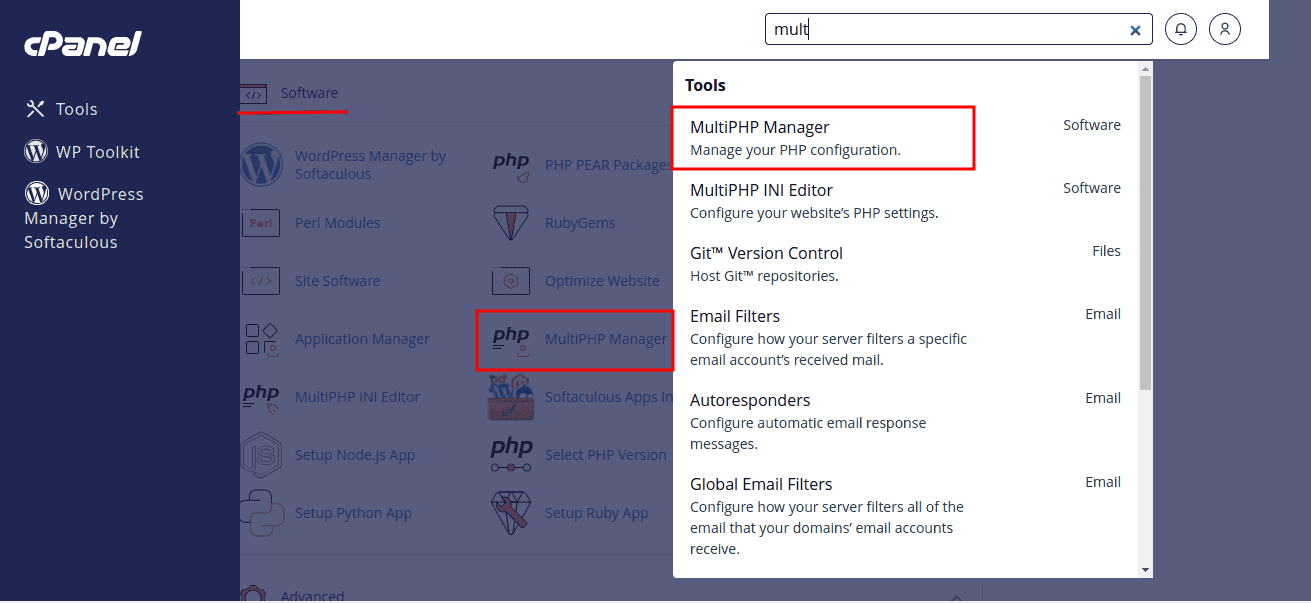
Select Your Domain and PHP Version
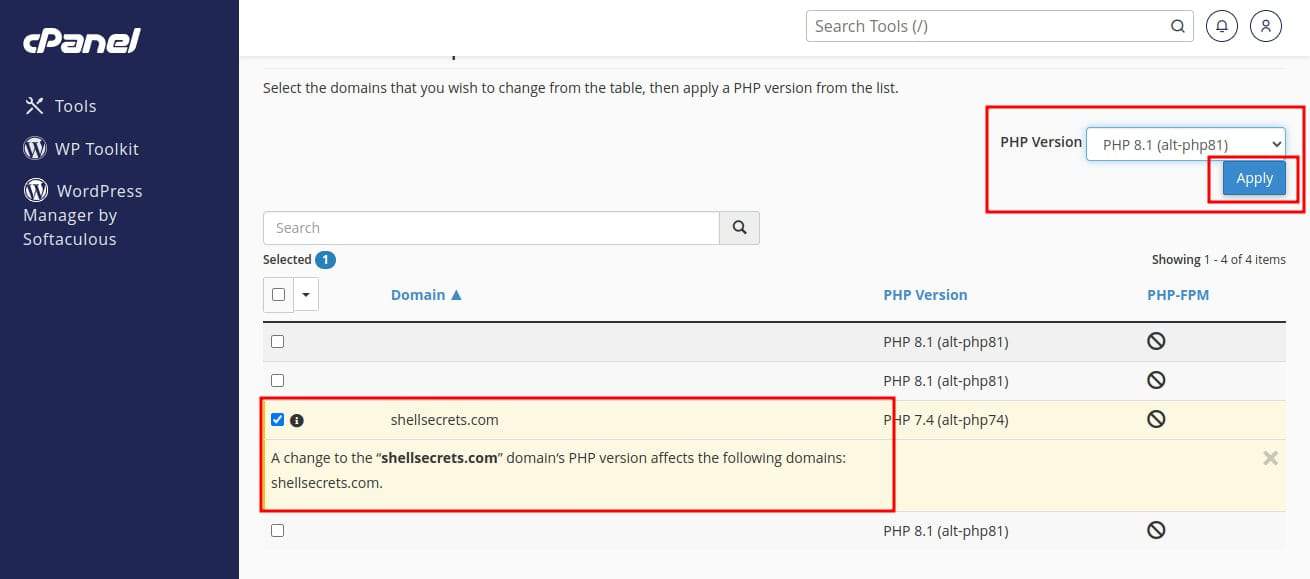
Select the domain for which you want to change the PHP version, then choose your desired PHP version from the list.
Apply Changes
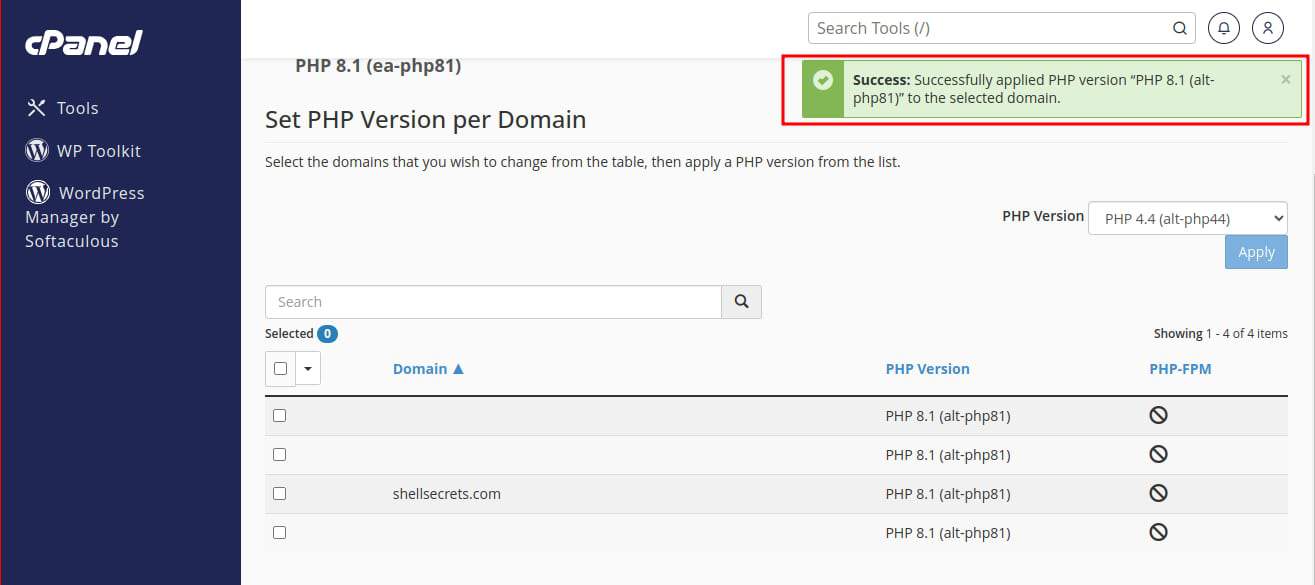
After selecting the required PHP version, click the Apply button to save your changes.
Important Note:
Make sure the PHP version is not being controlled from PHP Selector or the .htaccess file. Otherwise, you’ll need to update it there as well.Click here to change the PHP version from PHP SelectorClick here to change the PHP version from .htaccess file
Verify the Change
To ensure the PHP version change has taken effect, create a simple PHP file (e.g., info.php) in your website’s root directory (usually the public_html folder or the website’s named folder) with the following content:
<?php phpinfo(); ?>
Now open it in your browser (for example: yourdomain.com/info.php) and check the PHP version displayed.
Important Considerations
- This method only affects the selected website’s PHP version
- Some PHP versions may have deprecated features or compatibility issues
- Always test your website thoroughly after changing the PHP version
- Keep your website updated for better security and performance
Conclusion
Using cPanel’s MultiPHP Manager makes it easy to manage and switch PHP versions without dealing with complex configurations. By choosing the right PHP version, you can improve your website’s performance, security, and compatibility.