Linux File Permissions, Users & Groups: A Complete Practical Guide
Learn Linux file and directory permissions, users, groups, chmod, chown, umask, ACLs, and security best practices with practical examples.

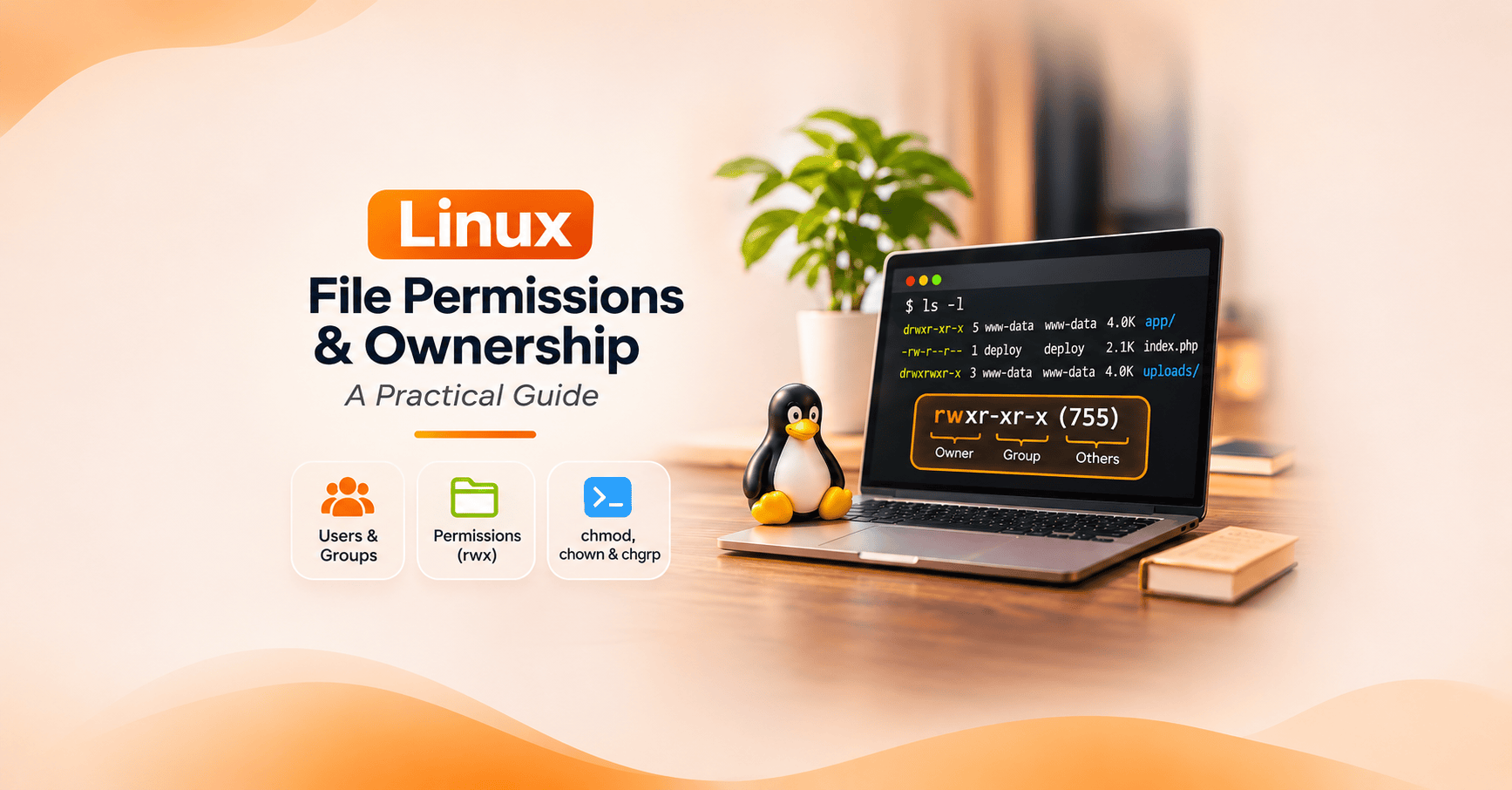
Linux security starts with a simple rule: not everyone should have access to everything.
Whether you're hosting a website, deploying an application, or managing production servers, understanding Linux file permissions is essential.
A single incorrect permission can break an application, expose sensitive files, or allow unauthorized users to modify important data.
You've probably encountered commands like:
chmod 755 /var/www/html
chown www-data:www-data /var/www/html
chmod 777 uploads/
But what do these commands actually do? Why is chmod 777 considered risky? And how do you assign the right permissions?
In this guide, we'll explore Linux users, groups, ownership, and file permissions through practical examples you can apply to your own systems.
1. Understanding Linux Users and Groups
Linux is a multi-user operating system. Each user has an identity, and groups help organize access to shared resources.
Linux Users
Linux commonly has three types of accounts:
- Root user: The administrative account with extensive system privileges.
- Regular users: Accounts used by people to log in and work.
- Service users: Accounts used by applications, such as
www-dataormysql.
Check your current username:
whoami
Display your user ID (UID), primary group ID (GID), and supplementary groups:
id
Example output:
uid=1000(alex) gid=1000(alex) groups=1000(alex),27(sudo),1001(developers)
Here, alex belongs to the primary group alex and supplementary groups sudo and developers.
Linux Groups
Groups allow multiple users to access shared resources without configuring permissions individually.
For example, create a group for developers:
sudo groupadd developers
Add an existing user:
sudo usermod -aG developers alex
The -aG options append the group without removing existing supplementary group memberships.
Note: Group membership changes generally take effect after the user starts a new login session.
Groups are particularly useful when multiple developers or services require access to shared directories.
2. How Linux File Permissions Work
Every traditional Linux file or directory has an owning user, an owning group, and permission bits.
To inspect them:
ls -l
Example output:
-rwxr-xr-- 1 alex developers 2048 Nov 2 10:00 deploy.sh
The important part is:
-rwxr-xr--
It represents four sections:
File type | Owner | Group | Others
    -     |  rwx  |  r-x  |  r--
The first character identifies the file type:
-— Regular filed— Directoryl— Symbolic link
The remaining nine characters represent permissions for the owner, group, and others.
Understanding Read, Write, and Execute
Linux uses three fundamental permissions:
| Permission | Symbol | Numeric value |
|---|---|---|
| Read | r |
4 |
| Write | w |
2 |
| Execute | x |
1 |
For a regular file:
- Read (
r): Allows reading the contents. - Write (
w): Allows modifying the contents. - Execute (
x): Allows executing a valid program or script, subject to other execution requirements.
Directory Permissions Work Differently
For directories, permissions have different meanings.
| Permission | Directory behavior |
|---|---|
r |
List directory entries |
w |
Create, delete, or rename entries when search access is also available |
x |
Traverse the directory and access known entries, subject to other permissions |
For example, a user may be able to delete a read-only file if they have sufficient permissions on its parent directory.
This is why directory permissions are just as important as file permissions.
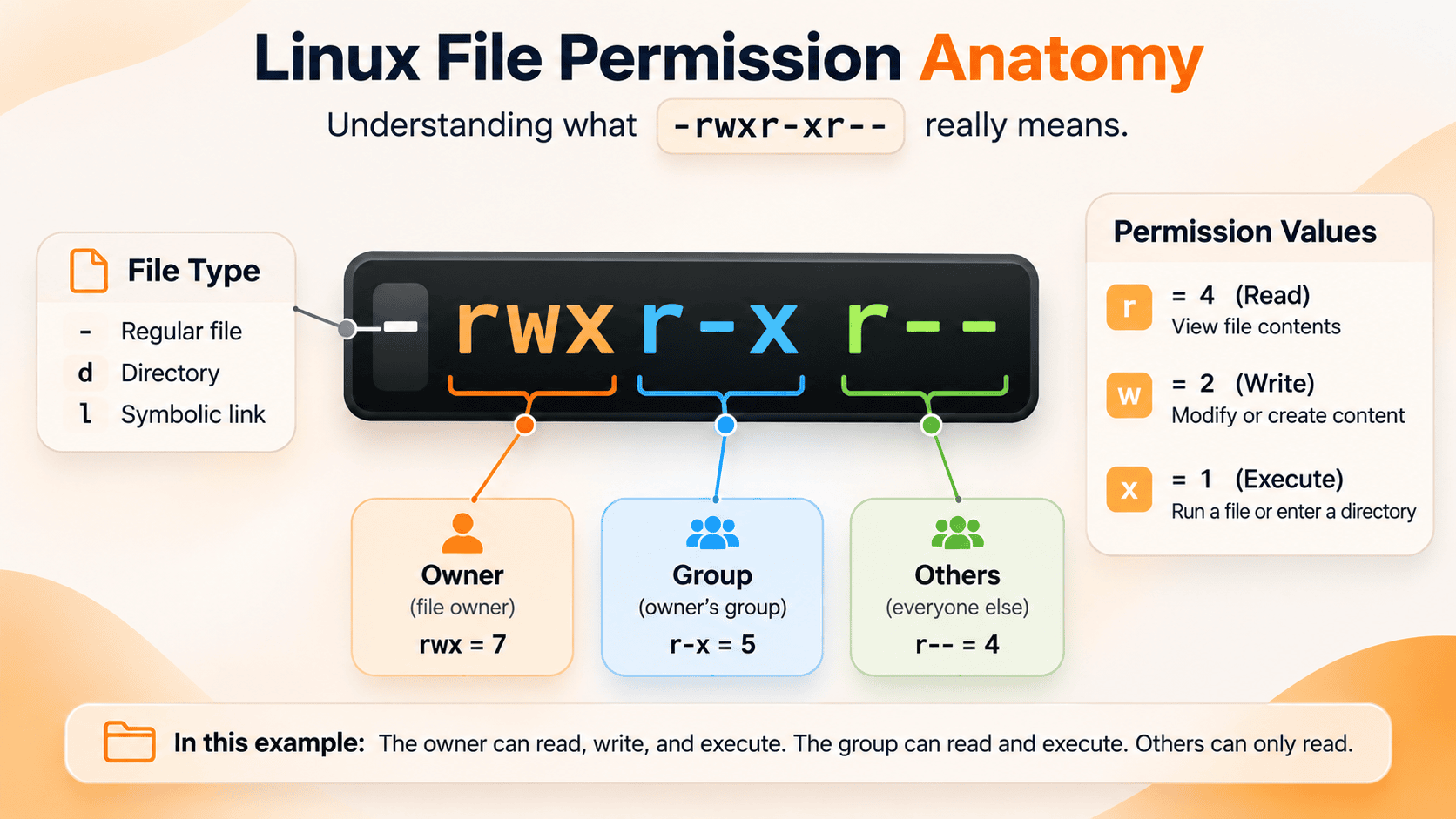
Suggested visual: An annotated -rwxr-xr-- example showing file type, owner, group, and others, with separate explanations of read, write, and execute.
3. Understanding chmod: 755, 644, 700, and 777
The chmod command changes file and directory permission bits.
Linux commonly represents permissions using octal numbers.
Each permission has a value:
Read    (r) = 4
Write   (w) = 2
Execute (x) = 1
These values are added together.
For example:
7 = 4 + 2 + 1 = rwx
6 = 4 + 2     = rw-
5 = 4 + 1     = r-x
4 = 4         = r--
Therefore:
755 = rwxr-xr-x
644 = rw-r--r--
700 = rwx------
777 = rwxrwxrwx
Common Linux Permissions
| Mode | Meaning | Typical use |
|---|---|---|
600 |
Owner can read and write | Private files |
644 |
Owner writes; everyone reads | Ordinary readable files |
700 |
Full access for owner only | Private directories |
750 |
Owner full access; group read/execute | Restricted directories |
755 |
Owner full access; others read/execute | Publicly traversable directories |
777 |
Everyone can read, write, and execute | Rare, carefully controlled cases |
These are common patterns, not universal security rules. Sensitive files may require more restrictive settings.
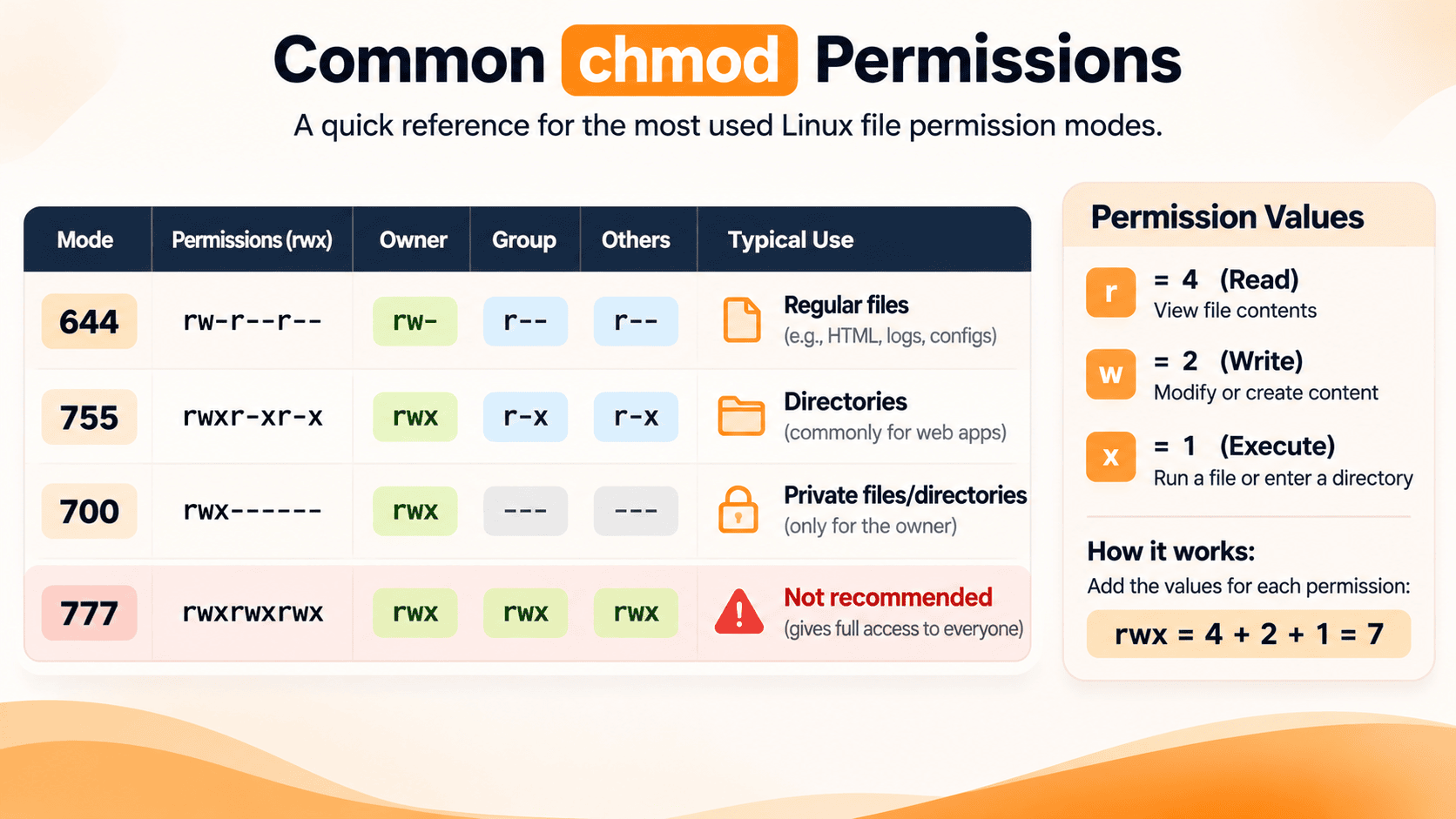
Suggested visual: A clean comparison of 644, 755, 700, and 777 using owner/group/others permission grids. Highlight the risks of 777.
Changing Permissions with chmod
Set permissions numerically:
chmod 644 index.html
chmod 755 public/
chmod 600 secrets.conf
Alternatively, use symbolic notation:
chmod u+x deploy.sh
chmod g+w shared.txt
chmod o-r private.txt
Here:
urepresents the owner.grepresents the group.orepresents others.+adds permission.-removes permission.
Symbolic notation is useful when changing a specific permission without replacing the entire mode.
4. Managing File Ownership with chown and chgrp
Permissions determine what users can do, while ownership helps determine which permission class applies.
The chown command changes ownership.
Change the owner of a file:
sudo chown alex file.txt
Change both the owner and group:
sudo chown alex:developers file.txt
Change ownership recursively:
sudo chown -R alex:developers /srv/project
To change only the group:
sudo chgrp developers file.txt
Why Ownership Matters on Web Servers
Consider a PHP web application.
The application code is managed by a deployment user, while the web server runs under www-data.
A secure configuration might look like this:
| Resource | Required access |
|---|---|
| Application source code | Deployment user can modify |
| Web server process | Can read required application files |
| Upload directory | Web application can write |
| Sensitive configuration | Accessible only to authorized identities |
Giving the web server write access to all application files can increase the impact of a compromised application.
A better approach is to separate deployment access from runtime access.
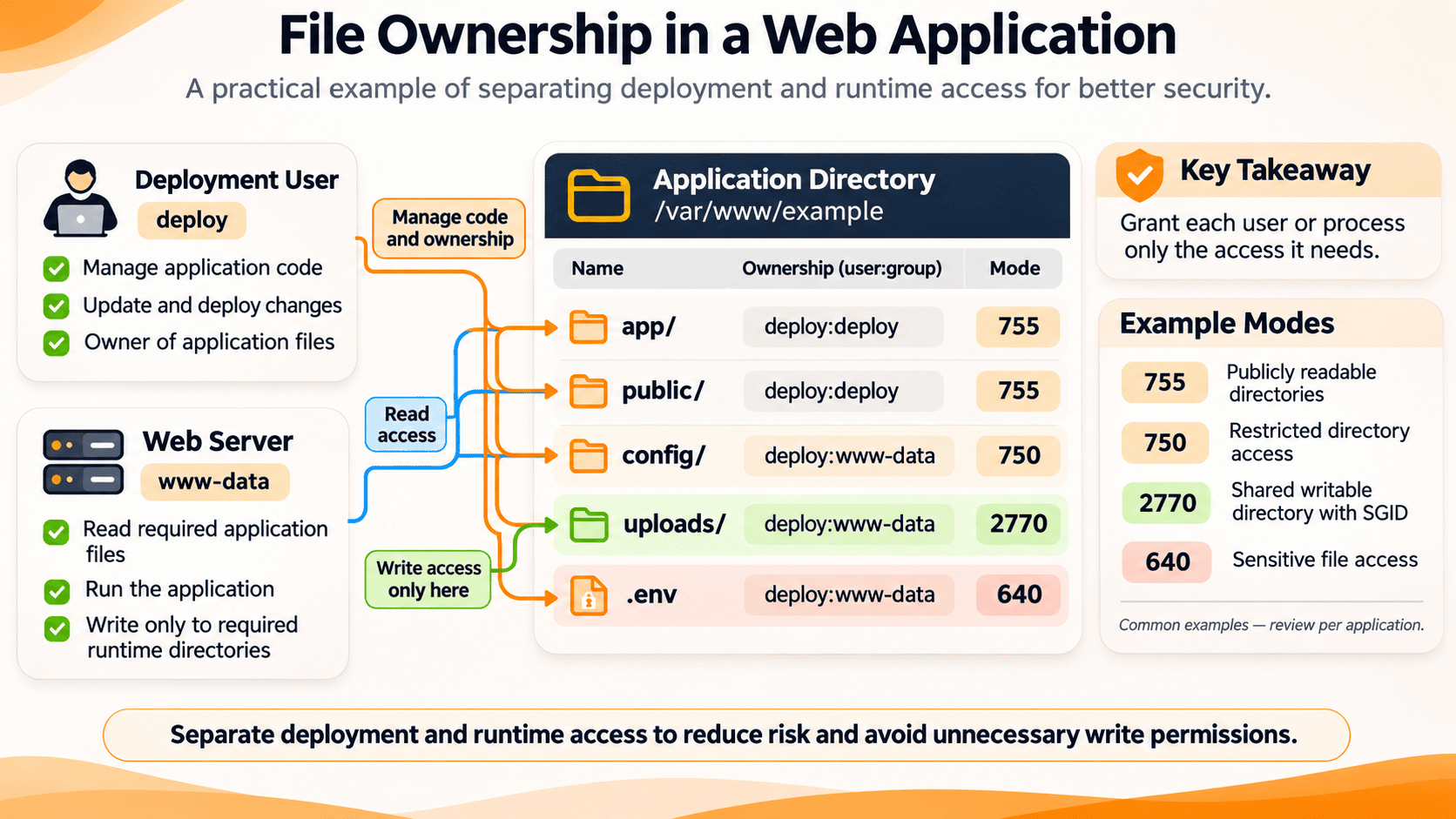
Suggested visual: A deployment user controlling application code, a web server reading the code, and a separate uploads directory where the web application has write access.
This follows the principle of least privilege: users and processes should receive only the access necessary to perform their tasks.
5. Why chmod 777 Is Dangerous
One of the most common Linux administration mistakes is using:
chmod -R 777 /var/www/html
It's often used to quickly solve a permission-denied error.
Unfortunately, 777 grants read, write, and execute access to all traditional permission classes.
On a shared or compromised system, this may allow unintended local users or processes to modify application files.
Important: 777 does not automatically expose files over the internet. Remote exposure depends on the application and network configuration. However, excessive filesystem permissions can make an existing compromise significantly worse.
A Safer Approach
For a typical website with ordinary files intended to be readable by the web server, common starting permissions are:
Directories: 755
Files:       644
You can apply them separately:
sudo find /var/www/html -type d -exec chmod 755 {} +
sudo find /var/www/html -type f -exec chmod 644 {} +
Warning: Do not run these commands blindly on production systems. They may expose sensitive files, remove necessary executable permissions, or override application-specific access requirements.
Review your application's directory structure and documentation first.
Directories that require application write access, such as uploads or caches, should have carefully scoped ownership and permissions.
The goal isn't simply to eliminate permission errors. It's to provide the exact access the application needs.
6. Troubleshooting Permission Denied Errors
When Linux displays:
Permission denied
Resist the temptation to immediately run chmod 777.
Instead, investigate systematically.
Step 1: Check Your Identity
id
Confirm which user and groups are associated with your current session.
Step 2: Inspect File Permissions
ls -l /srv/app/config.php
Look at the owner, group, and permission bits.
Step 3: Check Parent Directories
namei -l /srv/app/config.php
A file may be readable but inaccessible because one of its parent directories lacks the necessary search permission.
Step 4: Check Additional Access Controls
If the permissions appear correct, consider:
- Access Control Lists (ACLs)
- SELinux or AppArmor restrictions
- Read-only filesystems
- Container user mappings
- Service-specific security restrictions
Step 5: Fix Only the Required Access
Determine which process needs access and whether it requires read, write, or execute permissions.
Change the smallest necessary setting, then test the actual operation.
7. Linux File Permission Security Best Practices
File permissions are a fundamental security layer, especially on production servers.
Following a few practical principles can prevent many avoidable problems.
1. Follow the Principle of Least Privilege
Grant users and applications only the permissions they genuinely need.
Avoid unnecessary administrative access or broadly writable directories.
2. Avoid Unnecessary chmod 777
Never use 777 as your default solution to access problems.
Investigate the underlying ownership and permission requirements.
3. Protect Sensitive Files
Private SSH keys, credentials, and application secrets should have appropriately restrictive permissions.
For example:
chmod 600 ~/.ssh/id_ed25519
This limits ordinary filesystem access to the file's owner.
4. Separate Application and Deployment Users
Where possible, the web server should read application code without having permission to rewrite it.
Only required runtime directories should be writable by the application.
5. Audit Permissions Periodically
Look for unexpected ownership, privileged executables, and world-writable files.
For example, to identify world-writable regular files in an application directory:
sudo find /var/www/example -type f -perm -0002 -print
Investigate the results before making changes. Not every reported file is automatically a vulnerability.
6. Remember That Permissions Are Only One Security Layer
Linux permissions complement, but do not replace, application security, service isolation, firewalls, security updates, monitoring, and tested backups.
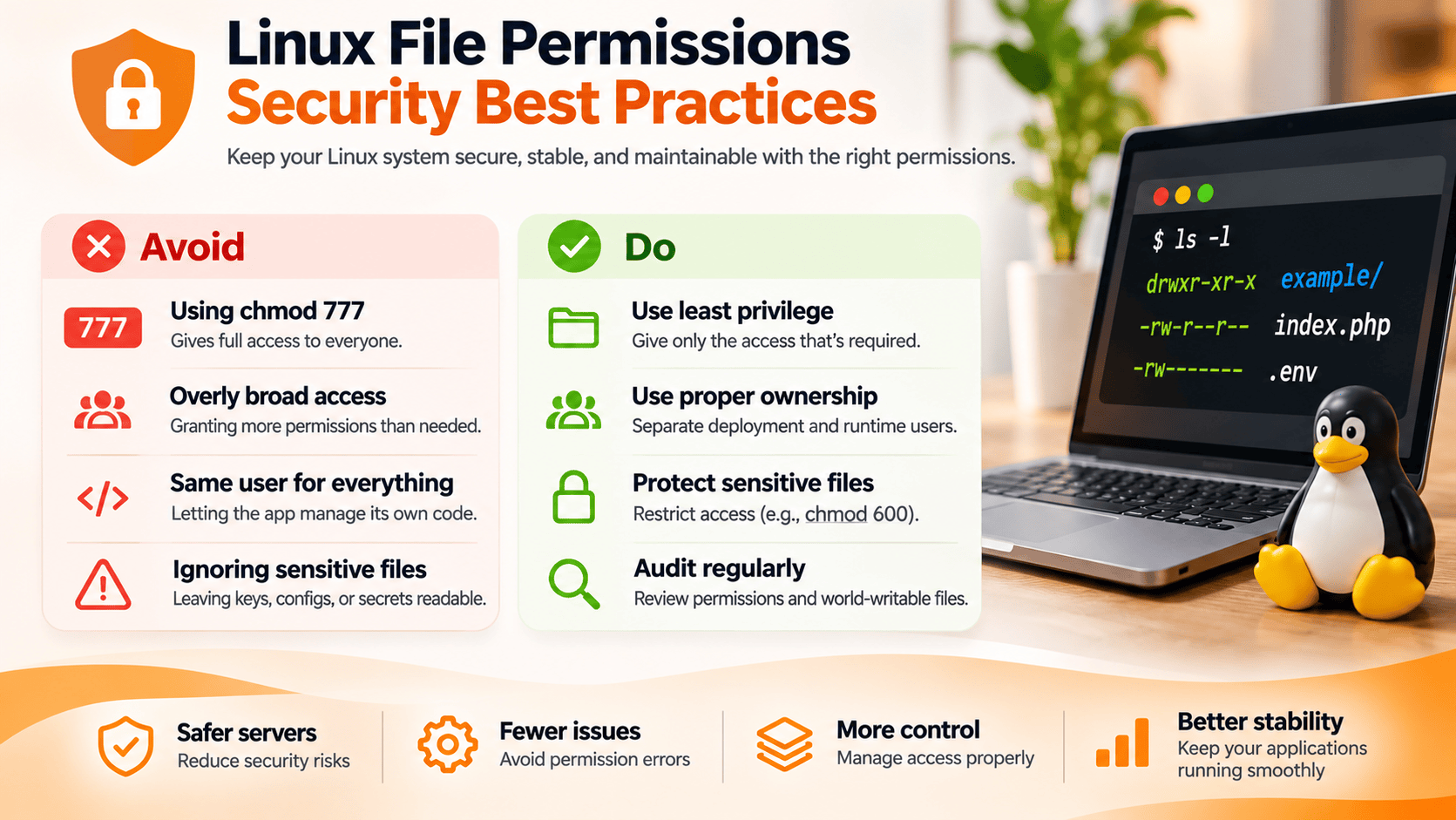
Suggested visual: A compact checklist contrasting risky practices such as world-writable application files with safer, least-privilege configurations.
8. Quick Linux Permissions Cheat Sheet
Keep these commands handy when managing Linux servers.
| Command | Purpose |
|---|---|
whoami |
Show current username |
id |
Display UID, GID, and groups |
ls -l |
Inspect ownership and permissions |
chmod 644 file |
Set a common readable-file mode |
chmod 600 file |
Restrict file access to owner |
chmod 755 dir |
Set a common directory mode |
chmod u+x script.sh |
Add owner execute permission |
chown user:group file |
Change ownership |
chgrp group file |
Change group ownership |
namei -l path |
Inspect permissions along a path |
Conclusion
Linux file permissions aren't just numbers to memorize. They're an essential part of protecting your system, managing users, and keeping applications secure.
Understanding users, groups, ownership, chmod, and chown helps you troubleshoot access problems and configure your servers with greater confidence.
The most important rule is simple:
Never grant more permissions just to make something work. Understand who needs access, what they need, and why.
Whether you're managing a personal Linux VPS or production infrastructure, thoughtful permission management is one of the foundations of reliable system administration.