How to Change PHP Version Using PHP Selector in cPanel
Log in to cPanel, open Select PHP Version, choose the PHP version you need and click Apply. Then confirm it with a phpinfo() file, and make sure MultiPHP Manager or .htaccess is not overriding the setting.


Ready to give your website a boost? Learn how to change PHP versions using cPanel's PHP Selector. Our simple guide makes it a breeze – supercharge your site's performance today!
Steps to Change PHP Version
Accessing cPanel
Log in to your cPanel account provided by your hosting provider. This is usually done by visiting:yourdomain.com/cpanel or yourdomain.com:2083
Select PHP Version
In cPanel, search for the option Select PHP Version. This tool allows you to manage your PHP version for each website.
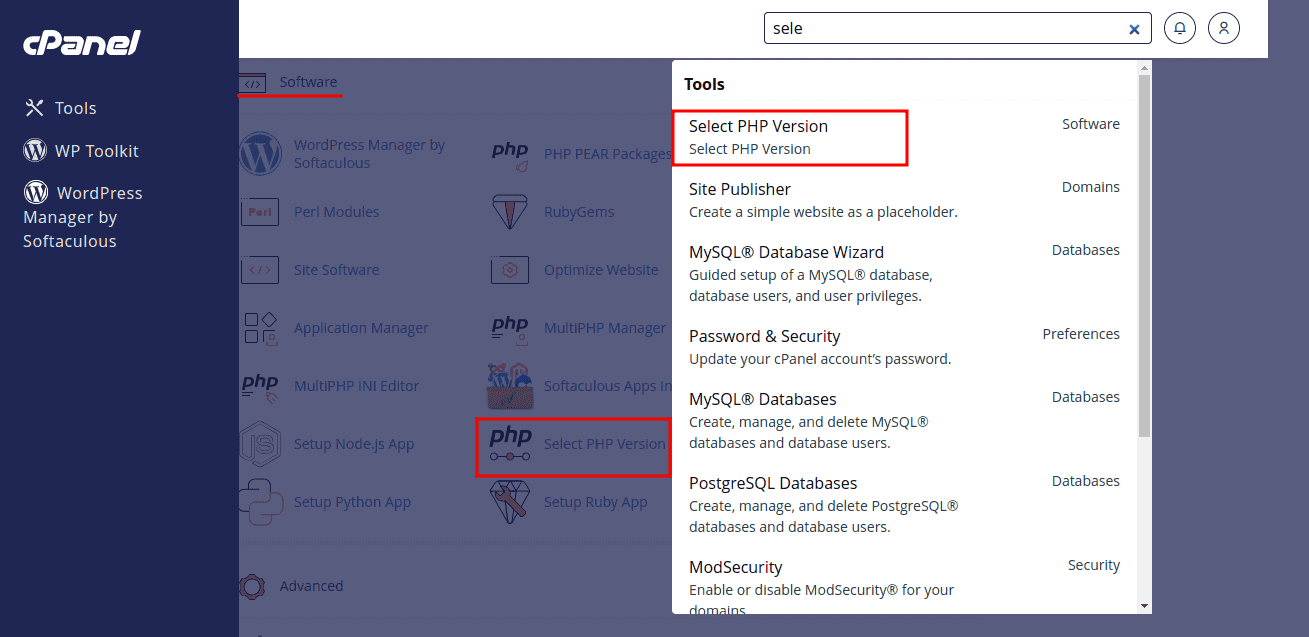
Select Your PHP Version
Select your required PHP Version from the list available in PHP Selector.
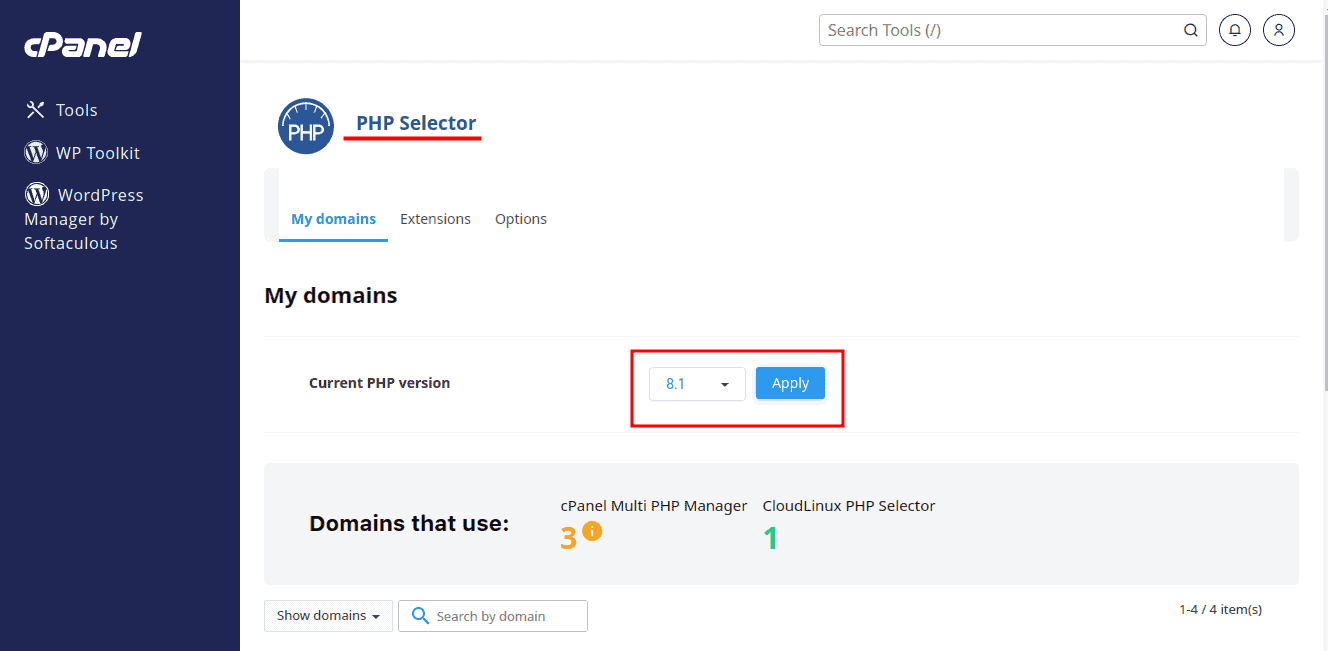
Apply Changes
After selecting the required PHP version, apply the changes by clicking the Apply button.
Important Note:
Make sure that the PHP version is not being controlled from MultiPHP Manager or .htaccess file. Else you'll need to update the PHP version from them as well.Change the PHP version from the .htaccess file: https://shellsecrets.com/articles/change-php-version-in-cpanel-using-htaccess/Change the PHP version from MultiPHP Manager: https://shellsecrets.com/articles/change-php-version-using-multi-php-manager-in-cpanel/
Verify the Change
To ensure the PHP version change has taken effect, you can create a simple PHP file (e.g., info.php) with the following content in your website's root directory, which is typically the public_html folder or the website's named folder:
<?php phpinfo(); ?>
Access this file in your browser (e.g., yourdomain.com/info.php) and check the PHP version displayed.
Delete info.php once you have checked the version, because a public phpinfo page exposes details about your server.
Important Considerations
While changing the PHP version, keep in mind that some PHP versions might have deprecated features or compatibility issues with your existing code. Make sure to test your website thoroughly after the version change and confirm if all of your plugins and themes are working fine as expected.
Regularly update your website's code to ensure it's compatible with newer PHP versions along with the latest plugins and themes. Staying up-to-date will help you avoid security vulnerabilities and benefit from performance improvements.
Conclusion
Staying updated with PHP versions isn't just a techie thing; it directly impacts how your site runs and how safe it is for your visitors. So, as you wrap up this journey, know that you're now armed with a valuable tool that can shape your online presence for the better. As you continue tinkering with different versions and learning the ropes of web development, just remember – every click, every code change, and every version switch is a step forward. Keep that curiosity alive, and keep building an even more awesome digital space for yourself and your visitors. Happy coding, and here's to a future full of dynamic, responsive, and secure websites!