HTTP 304 Status Code: Meaning and How to Fix It

When browsing websites, loading pages quickly is important for both users and search engines. One HTTP response that helps improve website performance is the HTTP 304 Status Code.
If you’ve seen a “304 Not Modified” message in browser developer tools, server logs, or SEO audit reports, you may wonder what it means and whether it’s an issue.
In this guide, we’ll explain the HTTP 304 status code, why it happens, its SEO impact, and how to fix related problems.
What Is HTTP 304 Status Code?
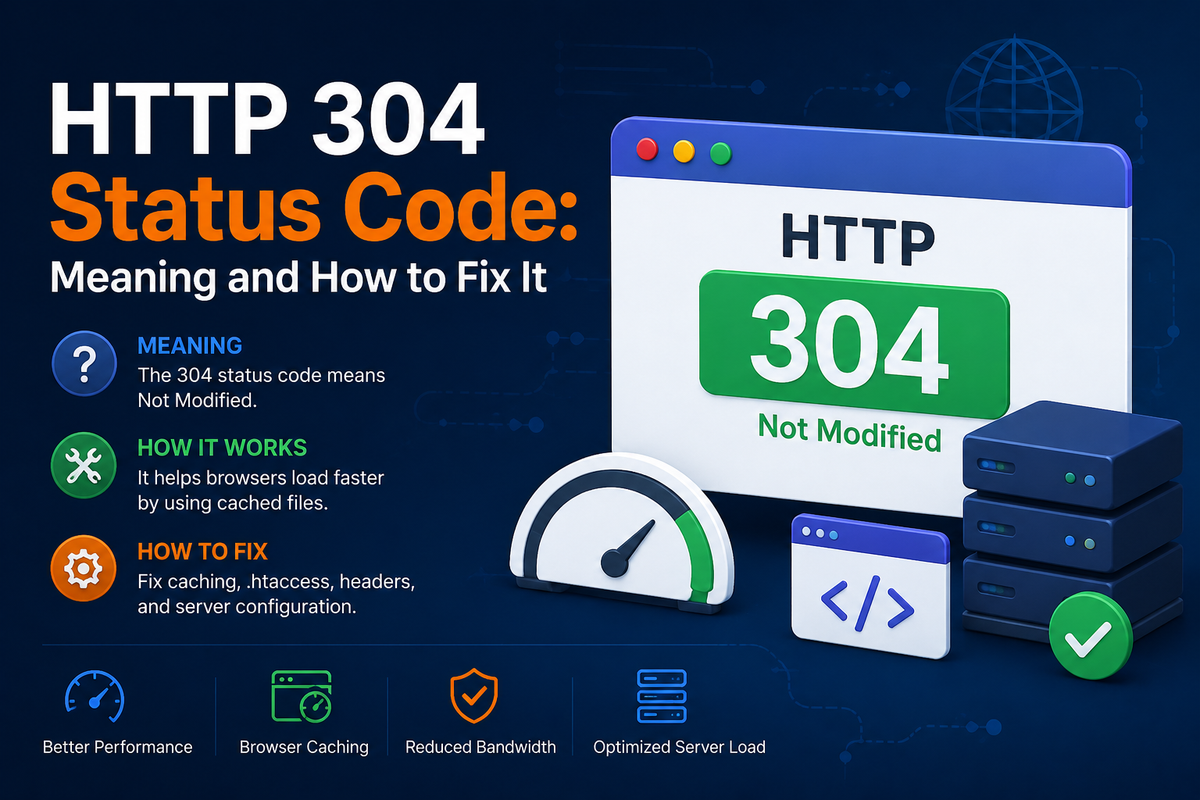
The HTTP 304 Status Code means:
“The requested resource has not been modified since the last request.”
Instead of downloading the same files again, the browser uses its cached version.
This response helps reduce:
- Bandwidth usage
- Server load
- Page loading time
The 304 status is mainly used for:
- Images
- CSS files
- JavaScript files
- Cached HTML pages
It’s a normal part of web performance optimization.
How HTTP 304 Works
Here’s a simple example:
- A user visits your website.
- The browser downloads assets like CSS, JS, and images.
- The browser stores those files in cache.
- When the user revisits the site, the browser asks:
- “Has this file changed?”
- If the file hasn’t changed, the server responds:
HTTP 304 Not Modified
- The browser loads the cached version instead of downloading it again.
This makes websites load much faster.
Example of HTTP 304 Response
HTTP/1.1 304 Not ModifiedDate: Fri, 08 May 2026 10:00:00 GMTCache-Control: max-age=3600ETag: "abc123"The server tells the browser:
- The file hasn’t changed
- Use the local cached version
Is HTTP 304 an Error?
Technically, it belongs to the 3xx redirection status codes, but it is not usually an error.
In most cases:
✅ HTTP 304 is good
✅ It improves performance
✅ It reduces unnecessary requests
However, problems can happen if:
- Cached files are outdated
- Browsers cache broken resources
- Website updates don’t appear
- SEO tools report indexing issues
How to Check HTTP 304 Status Code
Using Chrome Developer Tools
- Open your website
- Press
F12 - Go to the Network tab
- Refresh the page
- Look for status code
304
Using Online HTTP Header Checkers
You can use tools like:
- HTTP Status Checker
- Redirect Checker
- SEO audit tools
Using Terminal (cURL)
curl -I https://example.comHow to Fix HTTP 304 Issues
If HTTP 304 causes outdated content or caching problems, try these fixes.
1. Clear Browser Cache
Sometimes browsers use old cached resources.
In Chrome:
- Settings
- Privacy and Security
- Clear Browsing Data
- Cached Images and Files
2. Disable Browser Cache Temporarily
Useful during development.
In Chrome DevTools:
- Open Network tab
- Check “Disable cache”
3. Update Cache-Control Headers
Example:
Cache-Control: no-cache, must-revalidateThis forces browsers to validate resources again.
4. Change File Versions
A common fix is versioning CSS and JS files.
Example:
style.css?v=2When the version changes, browsers download the new file.
5. Configure Proper ETag Settings
Incorrect ETags may cause caching issues.
Apache Example
FileETag MTime Size6. Check CDN Caching
If using a CDN like Cloudflare:
- Purge cache
- Clear edge cache
- Enable cache refresh rules
7. Restart Server or Reverse Proxy
Nginx, Apache, or caching layers may store outdated responses.
Restart services after updates.
HTTP 304 vs Other Status Codes
| Status Code | Meaning |
|---|---|
| 200 | OK |
| 301 | Permanent Redirect |
| 302 | Temporary Redirect |
| 304 | Not Modified |
| 404 | Page Not Found |
| 500 | Internal Server Error |
Best Practices for HTTP Caching
To avoid HTTP 304 issues:
- Use proper cache headers
- Version static assets
- Purge CDN cache after updates
- Optimize browser caching
- Monitor server responses regularly
Final Thoughts
The HTTP 304 Status Code is an important part of website performance optimization. It helps browsers load cached resources instead of downloading files repeatedly.
Most of the time, a 304 response is completely normal and beneficial.
However, if users see outdated content or website changes fail to appear, reviewing caching settings, browser cache, CDN configuration, and server headers can help resolve the issue quickly.
Proper caching not only improves user experience but also supports better SEO and faster website performance.