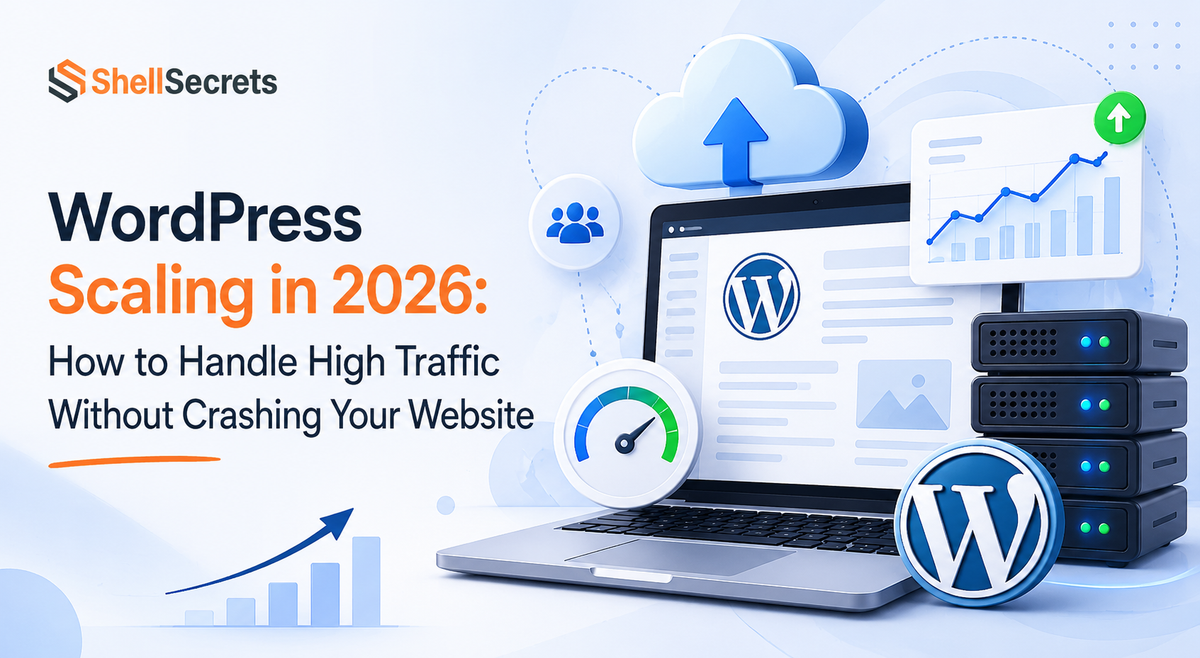
WordPress Scaling in 2026: How to Handle High Traffic Without Crashing Your Website
Learn how to scale WordPress websites in 2026 using caching, CDN, cloud hosting, and performance optimization techniques to handle high traffic without downtime or crashes.

Introduction: Why WordPress Scaling Matters More Than Ever
WordPress powers more than 40% of the internet, from small blogs to massive eCommerce stores and news platforms. But in 2026, one thing is clear:
Most WordPress websites don’t fail because of WordPress itself—they fail because they can’t handle traffic.
A site can run perfectly fine for months or years, and then suddenly crash during:
- A viral post
- A marketing campaign
- A product launch
- A seasonal sale (like Black Friday or Dashain offers)
And the frustrating part?
It’s rarely the content or design that breaks.
It’s the infrastructure.
Slow loading pages, database overload, and unoptimized caching layers quietly destroy performance when traffic increases.
This guide breaks down everything you need to know about WordPress scaling in 2026, from fundamentals to advanced architecture strategies used in high-traffic systems.
What WordPress Scaling Actually Means
Scaling is simply the process of making your website capable of handling more users without slowing down or crashing.
But scaling is not one thing—it has multiple layers.
There are three main scaling approaches:
1. Vertical Scaling (Scaling Up)
Vertical scaling means upgrading your existing server.
You don’t change architecture—you just add more power.
This includes:
- More CPU
- More RAM
- Faster SSD/NVMe storage
- Better bandwidth
Why vertical scaling is popular
- Easy to implement
- No code changes required
- Immediate performance improvement
- Works well for most small-to-medium WordPress sites
The limitation of vertical scaling
The biggest problem is simple:
Every server has a limit.
Eventually:
- You hit maximum plan capacity
- Costs increase rapidly
- Performance gains start diminishing
At that point, upgrading further becomes inefficient.
2. Horizontal Scaling (Scaling Out)
Horizontal scaling means adding multiple servers instead of upgrading one.
So instead of relying on one powerful machine, you use several smaller ones working together.
Benefits
- Infinite scalability
- High redundancy (failover protection)
- Handles massive traffic spikes
- Used by enterprise-level platforms
Challenges
WordPress was originally designed for single-server environments.
So horizontal scaling requires:
- Load balancers
- Shared database systems
- Centralized file storage
- Redis or distributed caching
- Session synchronization
Without proper setup, issues arise such as:
- Missing uploads
- Broken sessions
- Inconsistent data across servers
3. Auto Scaling (Modern Cloud Approach)
Auto scaling is the most modern solution.
Instead of manually upgrading or adding servers, the system automatically:
- Detects traffic spikes
- Adds resources in real time
- Reduces resources when traffic drops
This ensures:
- No downtime during viral traffic
- No wasted cost during low traffic
- Always optimized performance
How to Tell Your WordPress Site Needs Scaling
Most site owners only realize scaling is needed after a crash happens. But there are clear warning signs.
1. Slow performance during peak hours
If your site loads fast at night but slows during the day, your infrastructure is under pressure.
Example:
- 1.2 seconds at low traffic
- 5–7 seconds during peak traffic
That gap is not normal—it’s a scaling issue.
2. High TTFB (Time to First Byte)
\text{TTFB} = \text{Time between request and first server response byte}
If TTFB consistently exceeds:
- 600ms → warning
- 1 second+ → critical issue
Your server is struggling to respond fast enough.
3. Frequent 5xx errors
Errors like:
- 502 Bad Gateway
- 503 Service Unavailable
- 504 Gateway Timeout
These indicate server overload or resource exhaustion.
Even a small number of these during peak traffic is a serious sign.
4. High CPU and RAM usage
If your server regularly sits above:
- 70%–80% usage during normal traffic
You have no performance buffer left.
One traffic spike = potential crash.
5. Slow WordPress admin (wp-admin)
If your backend feels slow while frontend still works, your database is under stress.
wp-admin is not heavily cached, so it reveals real performance issues.
6. Database slowdowns
If queries take 1–3 seconds or more regularly, your database is a bottleneck.
7. Hosting dashboard warnings
If your hosting provider shows red CPU or memory graphs—don’t ignore them.
Those are early crash indicators.
Why WordPress Sites Struggle Under High Traffic
WordPress is not the problem. Poor configuration is.
Here’s what actually breaks sites:
1. Heavy plugins
Many plugins:
- Run unnecessary queries on every page
- Load scripts globally
- Perform background operations on frontend requests
At scale, this becomes expensive.
2. Bloated themes
Modern page builders often:
- Load excessive CSS/JS
- Create large DOM structures
- Increase render time significantly
This reduces how many requests your server can handle per second.
3. Lack of caching
Without caching, WordPress:
- Queries database
- Runs PHP
- Builds page
- Sends response
For every single visitor.
This is the biggest scalability killer.
4. Database accumulation
Over time WordPress stores:
- Post revisions
- Auto drafts
- Expired transients
- Plugin leftovers
- Autoloaded options
This slows down every request.
5. Bot traffic
Not all traffic is human.
Typical breakdown:
- Good bots (Google, Bing)
- Neutral bots (analytics tools)
- Bad bots (scrapers, attacks)
Bots can consume 20–40% of server resources.
6. Underpowered hosting
Sometimes the simplest answer is correct:
Your site outgrew your hosting plan.
The Caching Stack: The Real Secret to Scaling WordPress
If scaling had one “secret weapon,” it would be caching.
Caching reduces how often WordPress has to do expensive work.
Layer 1: CDN (Content Delivery Network)
A CDN stores copies of your site globally.
Instead of serving content from your main server, users get it from nearby locations.
Benefits:
- Faster global load times
- Massive reduction in origin server load
- Handles most static traffic
A good CDN can offload up to 80–90% of requests.
Layer 2: Page Cache
Page caching stores full HTML versions of pages.
Instead of rebuilding pages every time, WordPress serves pre-generated content.
This reduces load dramatically—often by 10x to 100x.
Layer 3: Object Cache
\text{Object Cache} = \text{Stored database query results in memory (Redis/Memcached)}
Object caching stores database query results in memory.
This is critical for:
- WooCommerce stores
- Membership sites
- LMS platforms
- Dynamic dashboards
Layer 4: Opcode Cache
\text{OPcache} = \text{Precompiled PHP stored in memory for reuse}
OPcache stores compiled PHP code in memory so it doesn’t need recompilation on every request.
How the full stack works together
- CDN handles request first
- Page cache serves HTML if available
- Object cache reduces database calls
- OPcache speeds up PHP execution
- Database handles only uncached operations
Each layer reduces load on the next.
Database Optimization: The Hidden Performance Killer
Most WordPress performance issues come from the database.
Key improvements:
- Limit post revisions
- Remove expired transients
- Clean wp_options table
- Disable WP-Cron
- Use real system cron
- Optimize indexes
\text{Performance Gain} \propto \frac{1}{\text{Database Load}}
Lower database load = higher scalability.
Bot Protection = Free Performance Boost
Blocking bots is one of the easiest scaling improvements.
You should filter:
Good bots
- Search engines
- Monitoring tools
Bad bots
- Scrapers
- Spam bots
- Attack tools
Use:
- Cloudflare WAF
- Rate limiting
- Login protection
- Firewall rules
This alone can reduce load by 20–40%.
Vertical vs Horizontal vs Auto Scaling (Which Should You Use?)
Vertical scaling
Best for:
- Small/medium websites
- Predictable traffic
- Simple architecture
Horizontal scaling
Best for:
- Enterprise systems
- High redundancy requirements
- Large unpredictable traffic
Auto scaling
Best for:
- Viral content websites
- eCommerce stores
- High-growth businesses
Step-by-Step WordPress Scaling Strategy (Pro Guide)
Follow this order:
1. Remove unused plugins
2. Optimize or replace theme
3. Add CDN (Cloudflare recommended)
4. Enable page caching
5. Add Redis object cache
6. Optimize database
7. Disable WP-Cron
8. Add bot protection
9. Optimize images (WebP/AVIF)
10. Run load tests
11. Upgrade hosting only if needed
Why Most Sites Waste Money on Hosting
Here’s the truth:
A poorly optimized Rs50,000 server performs worse than a well-optimized Rs30,000 server.
Because:
- Caching matters more than hardware
- Database efficiency matters more than CPU
- Architecture matters more than RAM
Final Thoughts: Scaling Is Not About Power—It’s About Efficiency
WordPress scaling is often misunderstood.
People assume:
“More traffic = need more server power”
But the real equation is:
Better architecture = more traffic handled without extra cost
Most scaling problems are solved by:
- Better caching
- Cleaner database
- Less bot traffic
- Smarter architecture
Not by upgrading servers blindly.
Call to Action (High-Converting Section)
If your WordPress site is slowing down under traffic or you’re planning a major launch, you don’t just need hosting—you need a properly engineered infrastructure.
At ShellSecrets, we help businesses:
- Scale WordPress for high traffic
- Optimize VPS and cloud infrastructure
- Implement secure caching architecture
- Protect against bots and downtime
- Build production-ready hosting environments
Because scaling is not luck—it’s engineering.