How to change php version in cPanel using .htaccess?

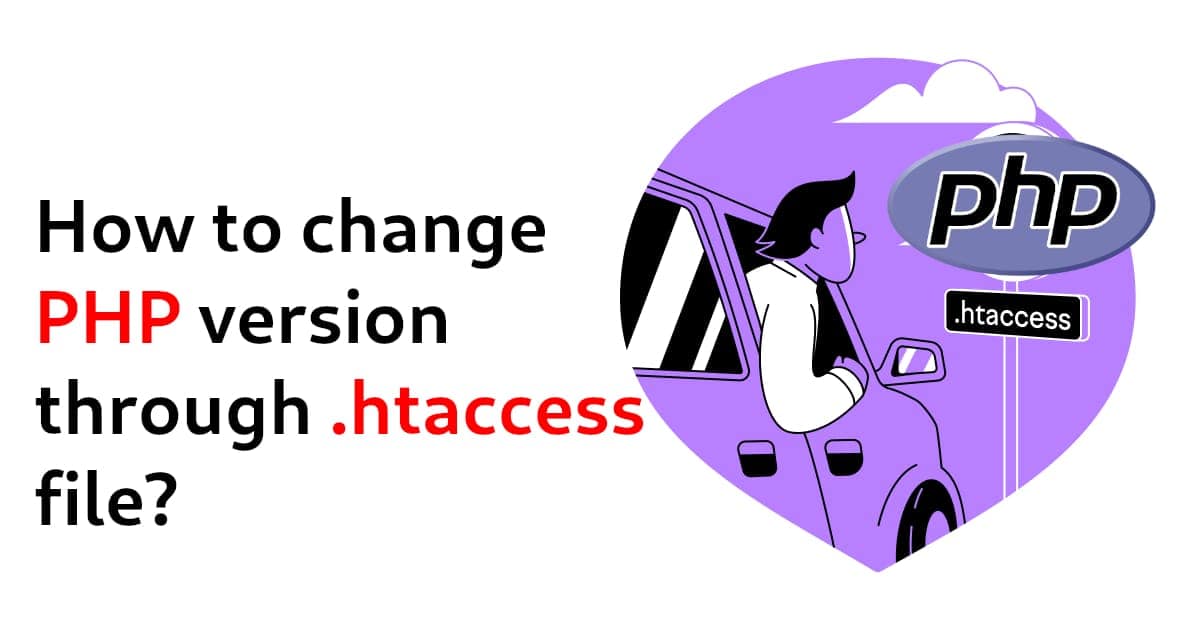
Discover how to effortlessly update your PHP version using the .htaccess file in cPanel. Enhance your website's security, performance, and compatibility with this step-by-step guide to staying up-to-date in the dynamic world of web development.
Understanding .htaccess
The .htaccess (hypertext access) file is a powerful configuration file that allows you to modify various aspects of your web server's behavior for a specific directory or website. It's a handy tool for making changes without directly accessing the server's main configuration files.
Checking Available PHP Versions
Before you proceed, it's essential to verify the available PHP versions on your hosting server. Different hosting providers might offer different versions. You can typically find this information in your cPanel dashboard or by contacting your hosting support.
Steps to Change PHP Version
Accessing cPanel
Log in to your cPanel account provided by your web host. This is usually done by visiting yourdomain.com/cpanel.
Understood—no divider lines, just clean flow. Here’s the revised version:
Navigate to the Website's Directory
Once in the File Manager, make sure you're in the correct directory of your website where you want to make changes. This is typically the public_html folder or the website’s named folder.
Show Hidden Files
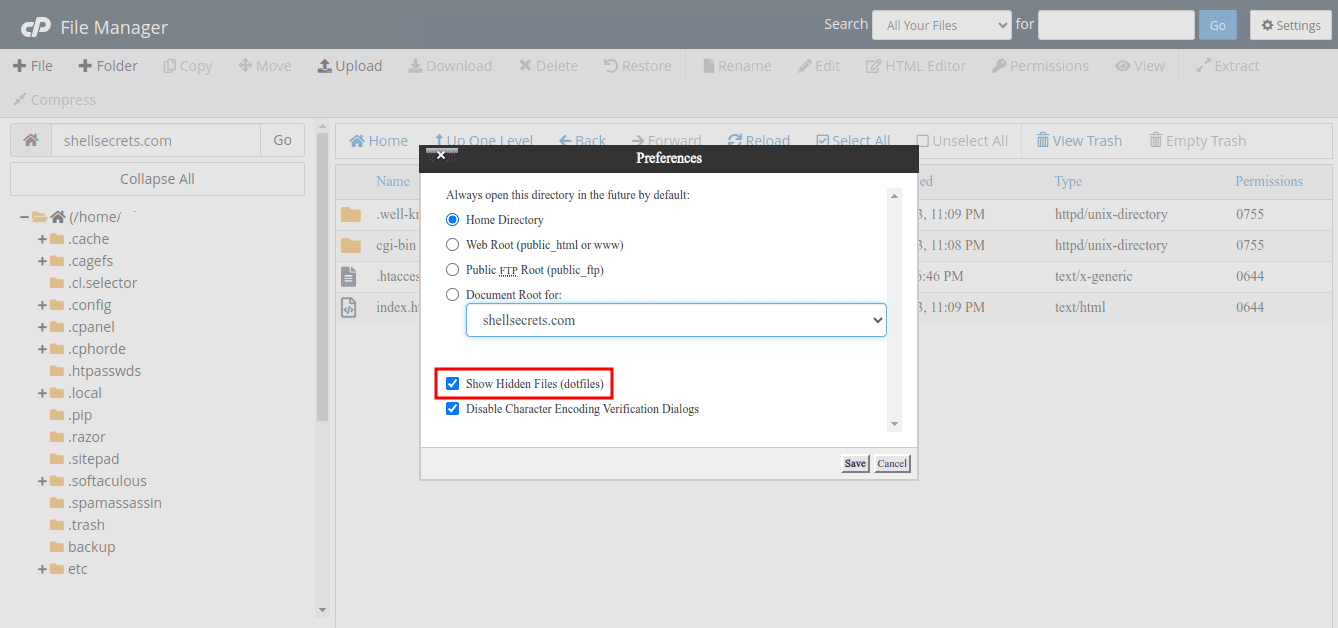
The .htaccess file is often hidden by default. To make it visible:
- Click on Settings or Options in the File Manager
- Enable Show Hidden Files
Edit .htaccess
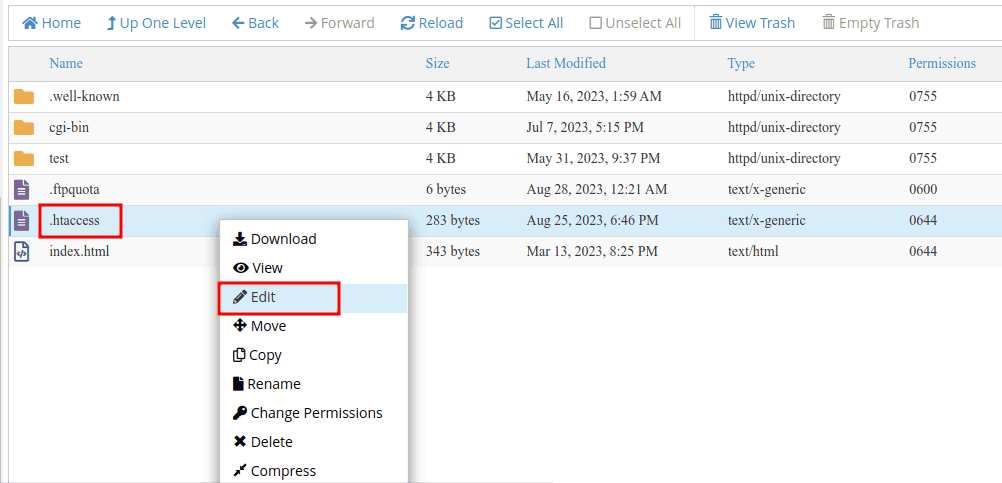
Locate the .htaccess file in the root directory and right-click on it. Choose Edit.
If the file doesn’t exist, you can create a new one using any text editor.
Add PHP Version Configuration
To switch to a different PHP version, add the appropriate code to your .htaccess file.
PHP 5.4
<IfModule mime_module>
  AddHandler application/x-httpd-alt-php54 .php .php5 .phtml
</IfModule>
PHP 5.5
<IfModule mime_module>
  AddHandler application/x-httpd-alt-php55 .php .php5 .phtml
</IfModule>
PHP 5.6
<IfModule mime_module>
  AddHandler application/x-httpd-alt-php56 .php .php5 .phtml
</IfModule>
PHP 7.0
<IfModule mime_module>
  AddHandler application/x-httpd-alt-php70 .php .php7 .phtml
</IfModule>
PHP 7.1
<IfModule mime_module>
  AddHandler application/x-httpd-alt-php71 .php .php7 .phtml
</IfModule>
PHP 7.2
<IfModule mime_module>
  AddHandler application/x-httpd-alt-php72 .php .php7 .phtml
</IfModule>
PHP 7.3
<IfModule mime_module>
  AddHandler application/x-httpd-alt-php73 .php .php7 .phtml
</IfModule>
PHP 7.4
<IfModule mime_module>
  AddHandler application/x-httpd-alt-php74 .php .php7 .phtml
</IfModule>
PHP 8.0
<IfModule mime_module>
  AddHandler application/x-httpd-alt-php80 .php .php8 .phtml
</IfModule>
PHP 8.1
<IfModule mime_module>
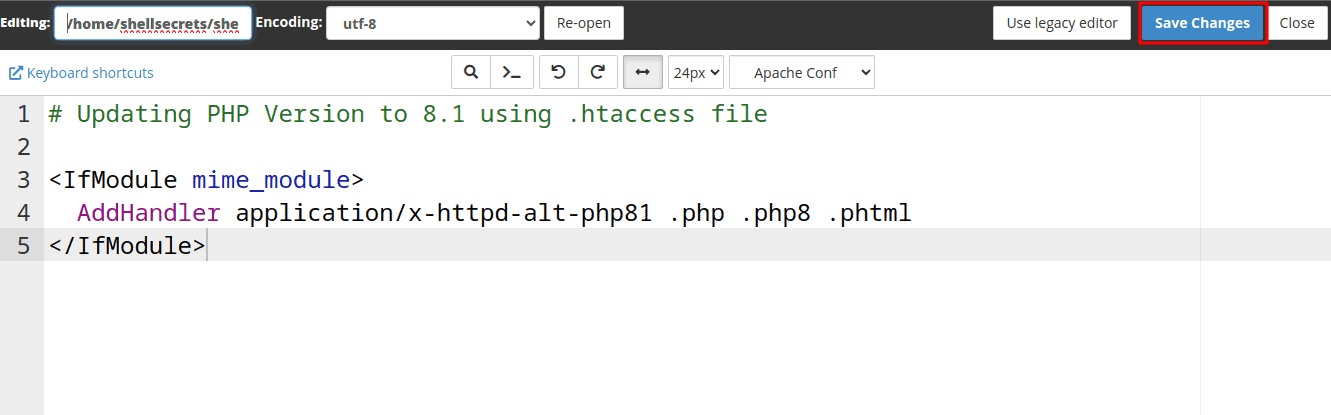
  AddHandler application/x-httpd-alt-php81 .php .php8 .phtml
</IfModule>
PHP 8.2
<IfModule mime_module>
  AddHandler application/x-httpd-alt-php82 .php .php8 .phtml
</IfModule>
PHP 8.3
<IfModule mime_module>
  AddHandler application/x-httpd-alt-php83 .php .php8 .phtml
</IfModule>
Save Changes
After adding the code, save the changes to the .htaccess file.
Important Note:
Make sure the PHP version is not being controlled from MultiPHP Manager or PHP Selector. Otherwise, you’ll need to update it there as well.Learn how to change the PHP version from MultiPHP ManagerLearn how to change the PHP version from PHP Selector
Verify the Change
To confirm the PHP version change:
Create a file named info.php with this content:
<?php phpinfo(); ?>
Then open it in your browser (e.g., yourdomain.com/info.php) and check the PHP version displayed.
Important Considerations
- This method only affects the directory where the
.htaccessfile is located - Some PHP versions may have deprecated features or compatibility issues
- Always test your website after changing the PHP version
- Keep your code updated for better security and performance
Conclusion
Changing the PHP version using the .htaccess file in cPanel is a simple and effective way to manage compatibility and performance. With just a few steps, you can switch PHP versions without modifying server-level settings.
Always verify the changes and test your website to ensure everything works correctly.