How to Connect Your Website to Google Search Console (Complete Beginner's Guide)
Learn how to connect your website to Google Search Console step by step. Verify ownership, submit sitemaps, monitor search performance, fix indexing issues, and improve your website's SEO rankings.

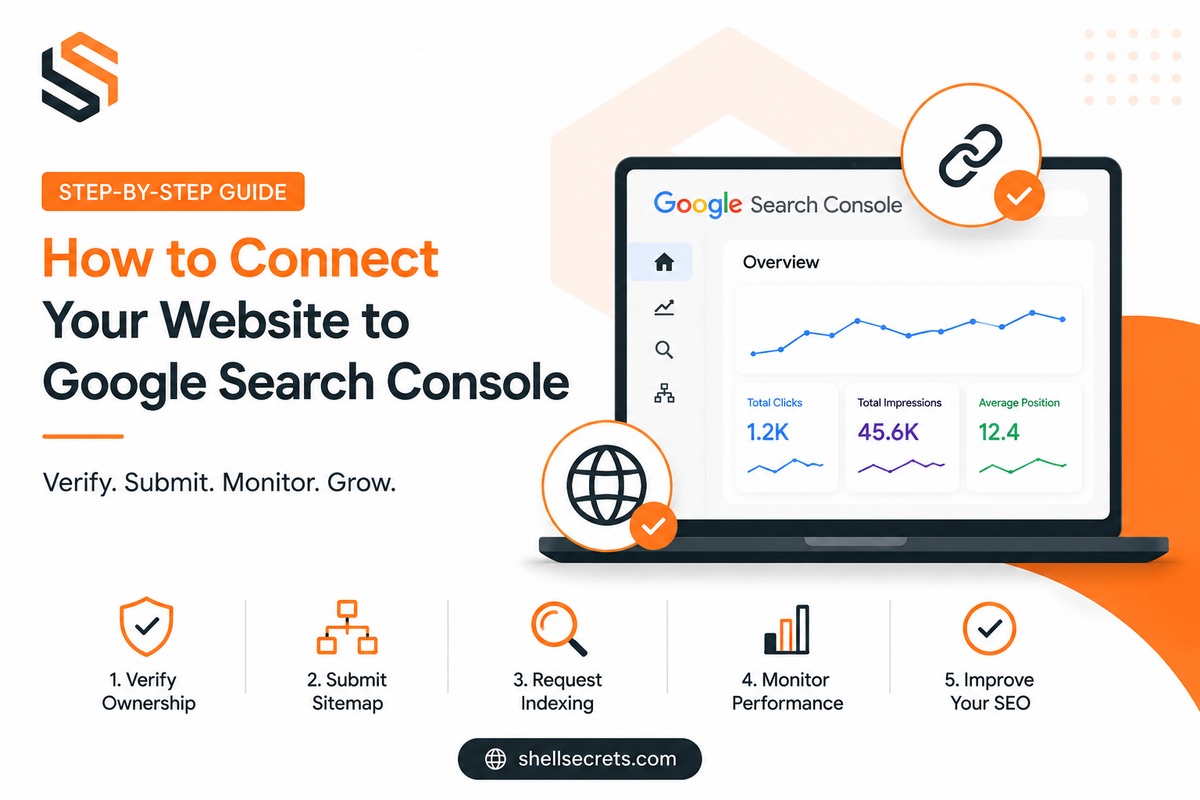
If you have lunched your website, don't forget one of the major thing is to connect it to Google Search Console. This is a free tool developed by the Google. It helps website owners monitor search performance, submit sitemaps, fix indexing issues, and improve SEO.
Whether you have a blog, business website, eCommerce store, or portfolio, Google Search Console is essential for ensuring your website appears in Google Search results.
In this article, you'll complete learn about the Google Search Console (GSC), how to connect your website to Google Search Console step by step.
End of the article you will know following this;
- What is Google Search Console
- Why Google Search Console is important
- How to connect Google Search Console to websites.
- How does Google Search Console improve SEO Ranking.
What is Google Search Console?
Google Search Console (GSC) is a free tool provided by Google that allows website owners to:
- Monitor website performance in Google Search
- Submit XML sitemaps
- Check indexing status
- Identify crawl errors
- Track keywords and search traffic
- Improve SEO performance
- Receive alerts about website issues
Think of Google Search Console as a communication bridge between your website and Google.
Why Connect Your Website to Google Search Console?
Connecting your website to Google Search Console (GSC) is one of the most important steps after launching a website. It helps you monitor how your website performs in Google Search, identify technical issues, and improve your SEO strategy. Here are the key benefits:
1. Faster Website Indexing
When you connect your website to Google Search Console, you can submit your sitemap directly to Google and request indexing for new or updated pages. This helps Google discover your content more quickly and increases the chances of your pages appearing in search results faster.
For example, if you publish a new blog post or create a new service page, you can use the URL Inspection tool to request indexing instead of waiting for Google to find the page on its own.
2. Track Search Performance
Google Search Console provides detailed information about how your website performs in Google Search.
You can see:
- Which keywords people use to find your website
- How many times your pages appear in search results (Impressions)
- How many users click on your pages (Clicks)
- Your average Click-Through Rate (CTR)
- The average ranking position of your keywords
This data helps you understand what content is performing well and which pages need improvement. By analyzing search performance, you can create content that targets the keywords your audience is already searching for.
3. Monitor Website Health and Fix Issues
Google Search Console continuously checks your website for technical problems that may affect search visibility.
It helps you identify:
- Crawl errors
- Broken links and missing pages (404 errors)
- Mobile usability issues
- Core Web Vitals and page experience problems
- Security threats such as malware or hacked content
By fixing these issues early, you can improve user experience and ensure Google can properly access and index your website.
4. Submit and Manage Sitemaps
A sitemap is a file that lists all the important pages on your website. By submitting your sitemap through Google Search Console, you help Google understand your website structure and discover new content more efficiently.
Benefits of submitting a sitemap include:
- Faster discovery of new pages
- Better indexing of large websites
- Easier crawling of updated content
- Improved visibility for important pages
This is especially useful for websites with many pages, blogs, eCommerce stores, and news portals.
5. Improve Your SEO Strategy
Google Search Console provides valuable insights that can help improve your search engine optimization (SEO).
You can:
- Find keywords where your pages rank on the second page of Google and optimize them to reach the first page
- Discover high-impression keywords with low CTR and improve titles and meta descriptions
- Identify top-performing pages
- Monitor backlink data
- Track SEO progress over time
These insights allow you to make data-driven decisions instead of guessing what works.
Read More SEO Related article = SEO
6. Understand How Users Find Your Website
Google Search Console helps you understand your audience better by showing the search queries people use before visiting your website.
This information allows you to:
- Create content around popular topics
- Understand user intent
- Discover new keyword opportunities
- Improve existing content based on real search behavior
Knowing what your visitors are searching for can help you create more relevant and valuable content.
7. Monitor Mobile and Page Experience Performance
Since most users browse websites on mobile devices, Google prioritizes mobile-friendly websites.
Google Search Console provides reports on:
- Mobile usability issues
- Core Web Vitals
- Page loading performance
- User experience metrics
Fixing these issues can improve both user satisfaction and search rankings.
8. Receive Important Alerts from Google
Google Search Console sends notifications when it detects important issues on your website, such as:
- Indexing problems
- Security issues
- Manual penalties
- Mobile usability errors
- Structured data problems
These alerts help you respond quickly before the issues negatively impact your website traffic.
Requirements Before You Start
Before connecting your website, make sure you have:
- A live website
- A Google account
- Access to your website hosting or DNS settings
How to Connect Your Website to Google Search Console
Google Search Console is a free tool provided by Google that helps website owners monitor, maintain, and improve their website's presence in Google Search results. Whether you run a blog, business website, eCommerce store, or news portal, connecting your website to Google Search Console is one of the first SEO tasks you should complete.
Follow the steps below to connect your website successfully.
Step 1: Open Google Search Console
Start by visiting the Google Search Console website and signing in with your Google account.
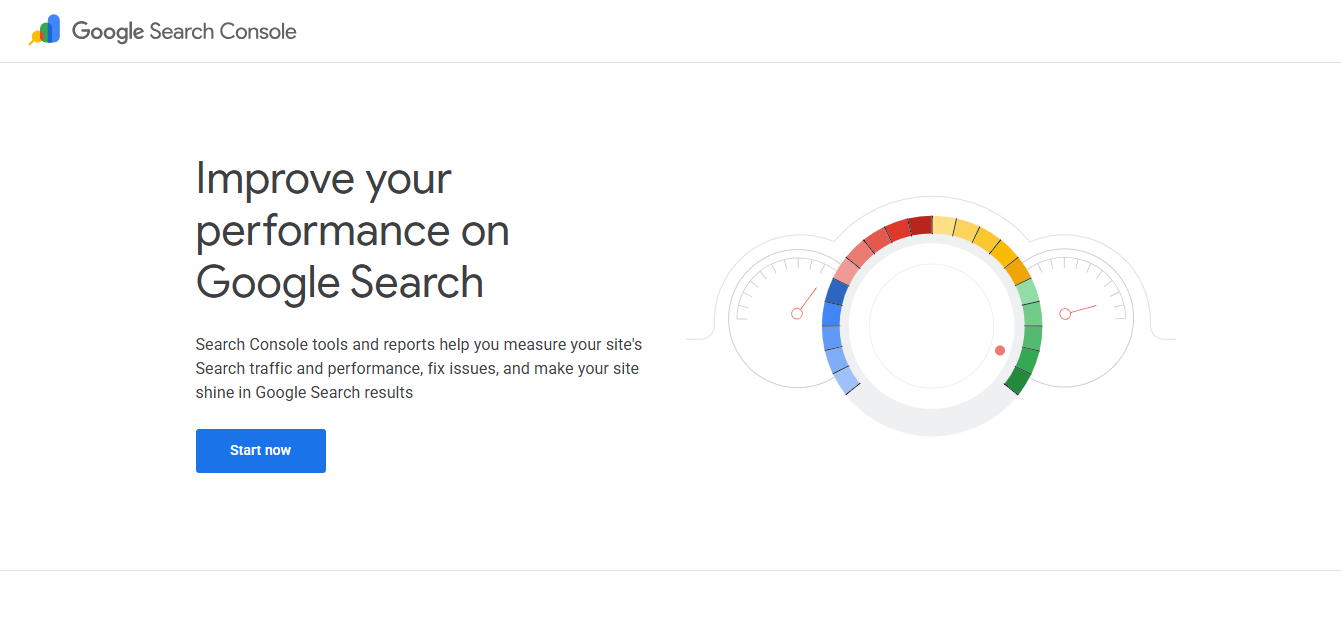
Once you're logged in, click the "Start Now" button to begin the setup process.
If you already manage other websites in Search Console, you can click the property selector and choose "Add Property" instead.
Step 2: Add Your Website Property
Google Search Console offers two different property types:
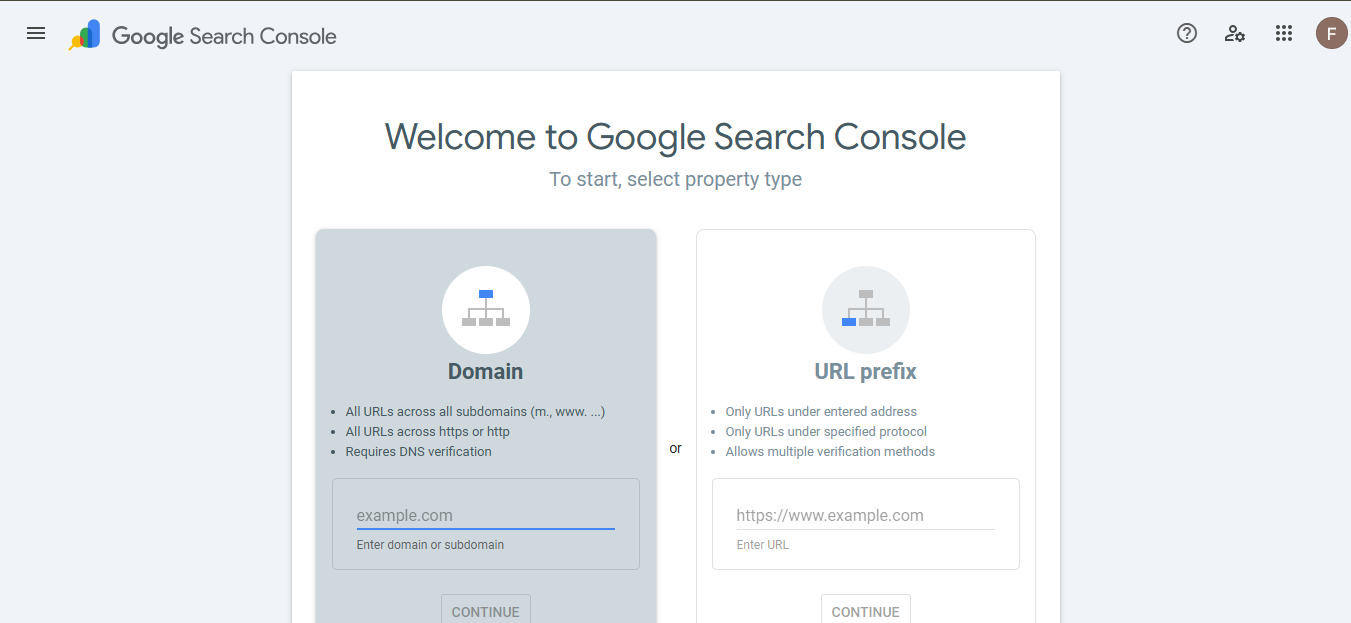
Domain Property (Recommended)
Example:
- yourwebsite.com
A Domain Property tracks all versions of your website, including:
- www and non-www versions
- HTTP and HTTPS versions
- All subdomains
Because it collects data from your entire domain, it provides the most complete picture of your website's performance.
URL Prefix Property
Example:
This option only tracks the specific URL you enter.
It is often easier to verify and can be a good choice for beginners who are setting up Search Console for the first time.
For most website owners, Domain Property is the recommended option because it provides more comprehensive data.
Enter your domain name and click Continue.
Step 3: Verify Website Ownership
Before Google gives you access to website data, it needs to confirm that you actually own the website.
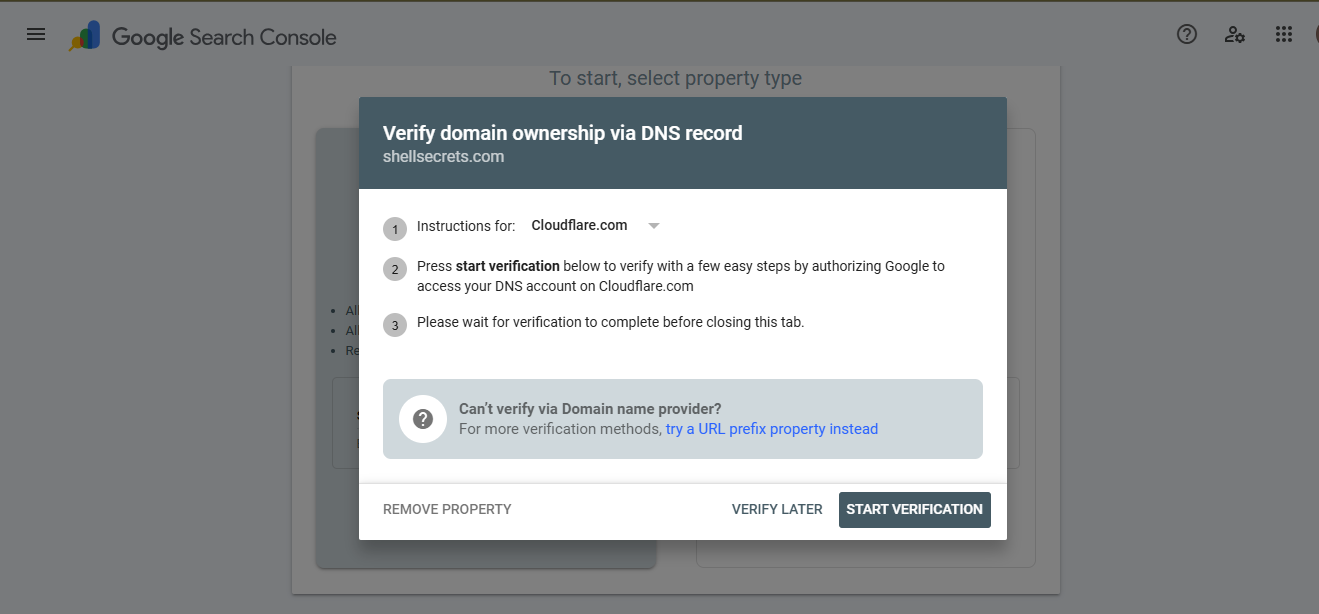
There are several ways to verify ownership.
Method 1: DNS Verification (Recommended)
This is Google's preferred verification method.
- Copy the TXT record provided by Google.
- Log in to your domain registrar or DNS provider.
- Open your DNS management settings.
- Create a new TXT record.
- Paste the verification code provided by Google.
- Save your changes.
DNS updates may take a few minutes or sometimes several hours to propagate across the internet.
After saving the record, return to Google Search Console and click Verify.
Method 2: HTML File Upload
If you have access to your website files:
- Download the HTML verification file provided by Google.
- Upload the file to your website's root directory.
- Return to Search Console.
- Click Verify.
Method 3: HTML Meta Tag
This method works well for users who can edit their website's code or use SEO plugins.
- Copy the meta verification tag provided by Google.
- Paste it inside the
<head>section of your homepage. - Save the changes.
- Click Verify in Search Console.
Method 4: Google Analytics
If Google Analytics is already installed and configured correctly on your website, Google may be able to verify ownership automatically.
This is often the quickest method for websites that already use Google Analytics.
Step 4: Submit Your XML Sitemap
After your website has been verified successfully, the next step is submitting your XML sitemap.
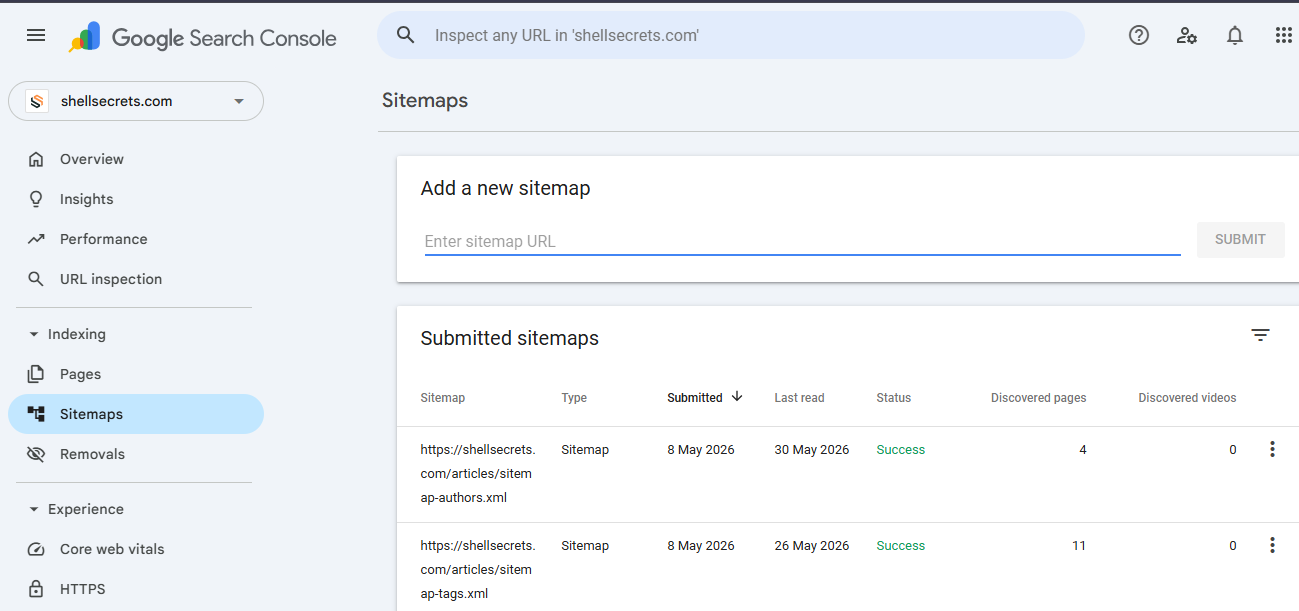
A sitemap helps Google understand your website structure and discover pages more efficiently.
In Google Search Console, navigate to:
Indexing → Sitemaps
Enter your sitemap URL:
https://yourwebsite.com/sitemap.xml
Then click Submit.
Common Sitemap URLs
WordPress Default
https://yourwebsite.com/sitemap.xml
Rank Math SEO
https://yourwebsite.com/sitemap_index.xml
Yoast SEO
https://yourwebsite.com/sitemap_index.xml
Submitting a sitemap can help Google find new pages faster and improve indexing efficiency.
Step 5: Request Indexing for Important Pages
Although Google automatically discovers many pages, you can manually request indexing for important content.
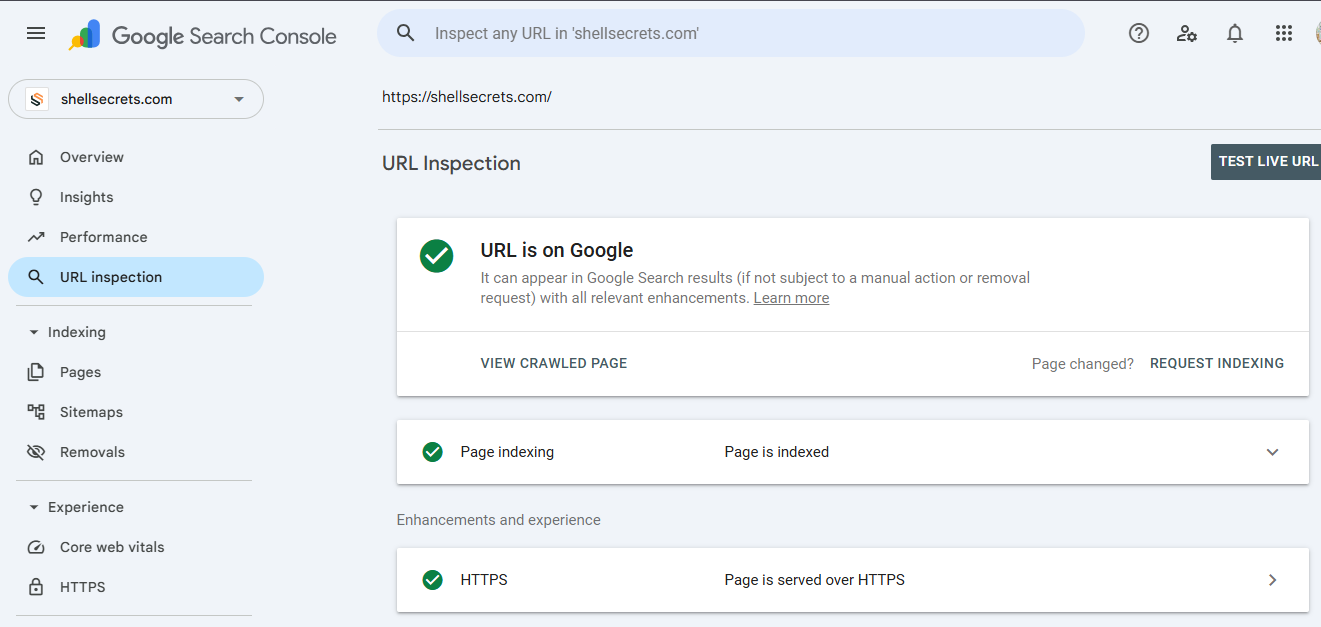
To do this:
- Open the URL Inspection Tool.
- Paste the page URL you want indexed.
- Press Enter.
- Click Request Indexing.
This tells Google that the page is ready to be crawled and added to its index.
This feature is especially useful when publishing new content or updating existing pages.
Step 6: Review Indexing Reports
Once Google starts crawling your website, you'll gain access to valuable indexing reports.
Indexed Pages
These are pages that have been successfully added to Google's search index and can appear in search results.
- URL is unknown to Google; read the full article based on the Indexed Pages issue
Excluded Pages
These are pages that Google chose not to index for various reasons.
Error Pages
These pages contain issues preventing Google from indexing them correctly.
Regularly reviewing these reports helps ensure your website remains healthy and visible in search results.
Step 7: Monitor Search Performance
One of the most valuable sections in Google Search Console is the Performance Report.
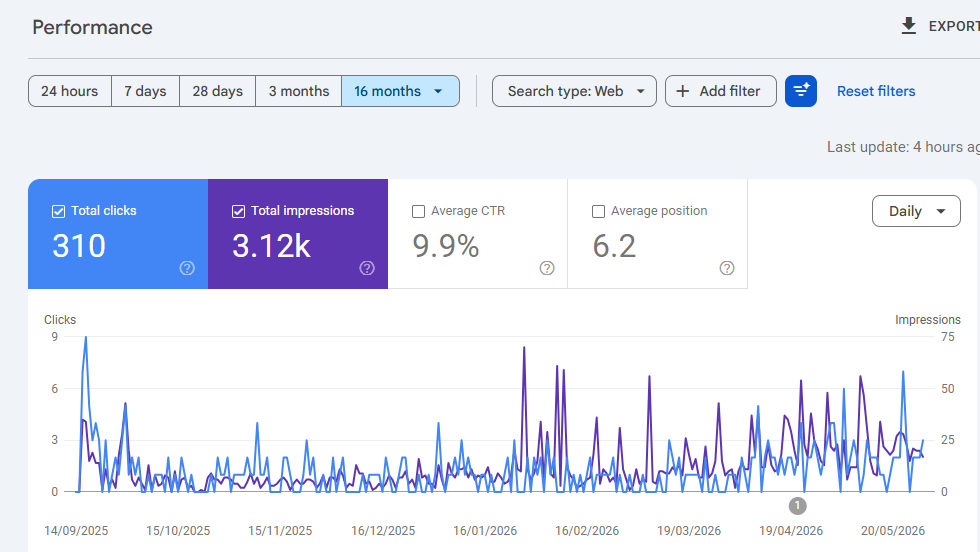
Navigate to:
Performance → Search Results
Here you'll find important SEO metrics such as:
- Total Clicks
- Total Impressions
- Average Click-Through Rate (CTR)
- Average Position
You can also see:
- Which keywords drive traffic
- Which pages perform best
- Which countries your visitors come from
- Which devices users are using
This information helps you understand what's working and where improvements are needed.
Common Verification Problems
Verification Failed
If Google cannot verify ownership, common causes include:
- Incorrect TXT record
- DNS changes not fully propagated
- Wrong domain entered during setup
- Verification code pasted incorrectly
Wait a few hours and try verifying again.
Sitemap Not Found
If your sitemap submission fails:
- Check that the sitemap URL is correct
- Ensure the sitemap is publicly accessible
- Confirm that security plugins or firewalls are not blocking access
Pages Not Indexed
Sometimes pages remain unindexed.
Possible reasons include:
- The website is brand new
- Content quality is too low
- Pages are blocked by robots.txt
- Lack of internal links
- Duplicate content issues
Improving content quality and requesting indexing can often resolve these problems.
Best Practices After Connecting Search Console
Publish Fresh Content Regularly
Google prefers websites that are updated consistently. Adding new content regularly encourages more frequent crawling.
Monitor Errors Weekly
Review indexing, crawl, and security reports to identify and fix issues before they impact your rankings.
Analyze Search Performance
Track your top-performing pages and keywords to discover new optimization opportunities.
Fix Broken Links
Resolve 404 errors and redirect problems to improve user experience and crawl efficiency.
Continue Improving SEO
Optimize page titles, meta descriptions, content quality, internal linking, and website speed to improve search visibility over time.
Final Thoughts
Google Search Console is one of the most powerful free SEO tools available for website owners. It provides valuable insights into how Google discovers, crawls, and indexes your website while helping you identify opportunities to improve your search performance.
The setup process takes only a few minutes, but the long-term benefits can be significant. By connecting your website to Google Search Console, you'll gain access to important data that can help improve indexing, boost SEO performance, increase search visibility, and drive more organic traffic to your website.
If you're serious about growing your website through Google Search, setting up Google Search Console should be one of the first items on your SEO checklist.
1. Is Google Search Console free?
Yes, Google Search Console is completely free to use. Anyone with a Google account can add and manage websites without any cost.
2. Do I need Google Search Console for my website?
While it's not mandatory, Google Search Console is highly recommended. It helps you monitor your website's performance in Google Search, fix indexing issues, and improve SEO.
3. How long does it take to verify a website in Google Search Console?
Verification can be instant with some methods, but DNS verification may take anywhere from a few minutes to 48 hours, depending on DNS propagation.
4. What is the best verification method?
Domain verification using a DNS TXT record is the recommended method because it covers all versions of your website, including subdomains and both HTTP and HTTPS.
5. What is a sitemap, and why should I submit it?
A sitemap is a file that lists your website's pages. Submitting it helps Google discover and crawl your content more efficiently.
6. What is the sitemap URL for WordPress websites?
Most WordPress websites use one of these sitemap URLs:
https://yourwebsite.com/sitemap.xmlhttps://yourwebsite.com/sitemap_index.xml
7. Can I connect multiple websites to one Google Search Console account?
Yes. You can add and manage multiple websites under the same Google account.
8. Why is my website not appearing in Google Search after connecting Search Console?
Connecting Search Console does not automatically rank or index your website. Google still needs to crawl and evaluate your content, which can take days or weeks.
9. How do I request Google to index a page?
Use the URL Inspection Tool in Google Search Console, enter the page URL, and click Request Indexing.
10. What should I do if my sitemap shows errors?
Check that:
- The sitemap URL is correct.
- The sitemap is publicly accessible.
- Your website isn't blocking search engines through robots.txt or security settings.
11. Can I use Google Search Console without Google Analytics?
Yes. Google Search Console and Google Analytics are separate tools. You can use either one independently or connect them for more insights.
12. How often should I check Google Search Console?
For active websites, checking at least once a week is recommended to monitor performance, indexing issues, and security alerts.
13. Does Google Search Console help improve rankings?
Google Search Console doesn't directly improve rankings, but it provides valuable data and error reports that help you optimize your website for better SEO results.